Platform Overview
Welcome to your AI worker platform! This guide will walk you through the main navigation so you can find everything you need quickly and easily. Think of this as your digital office tour!
Written By Alexander Clauss
Last updated 9 months ago
Select your Language
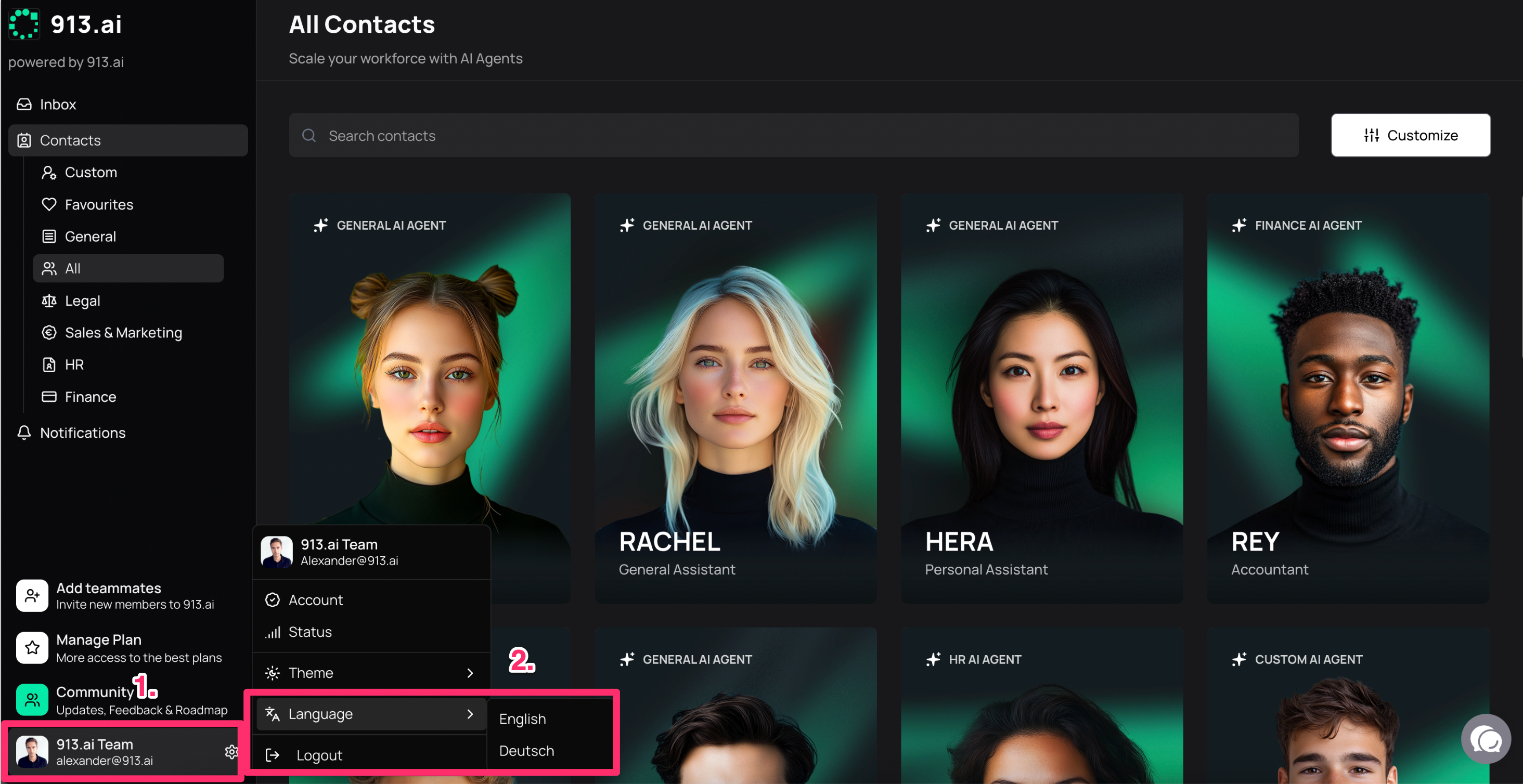
Go to your profile settings at the bottom left
Select your language
Dark or Light Mode
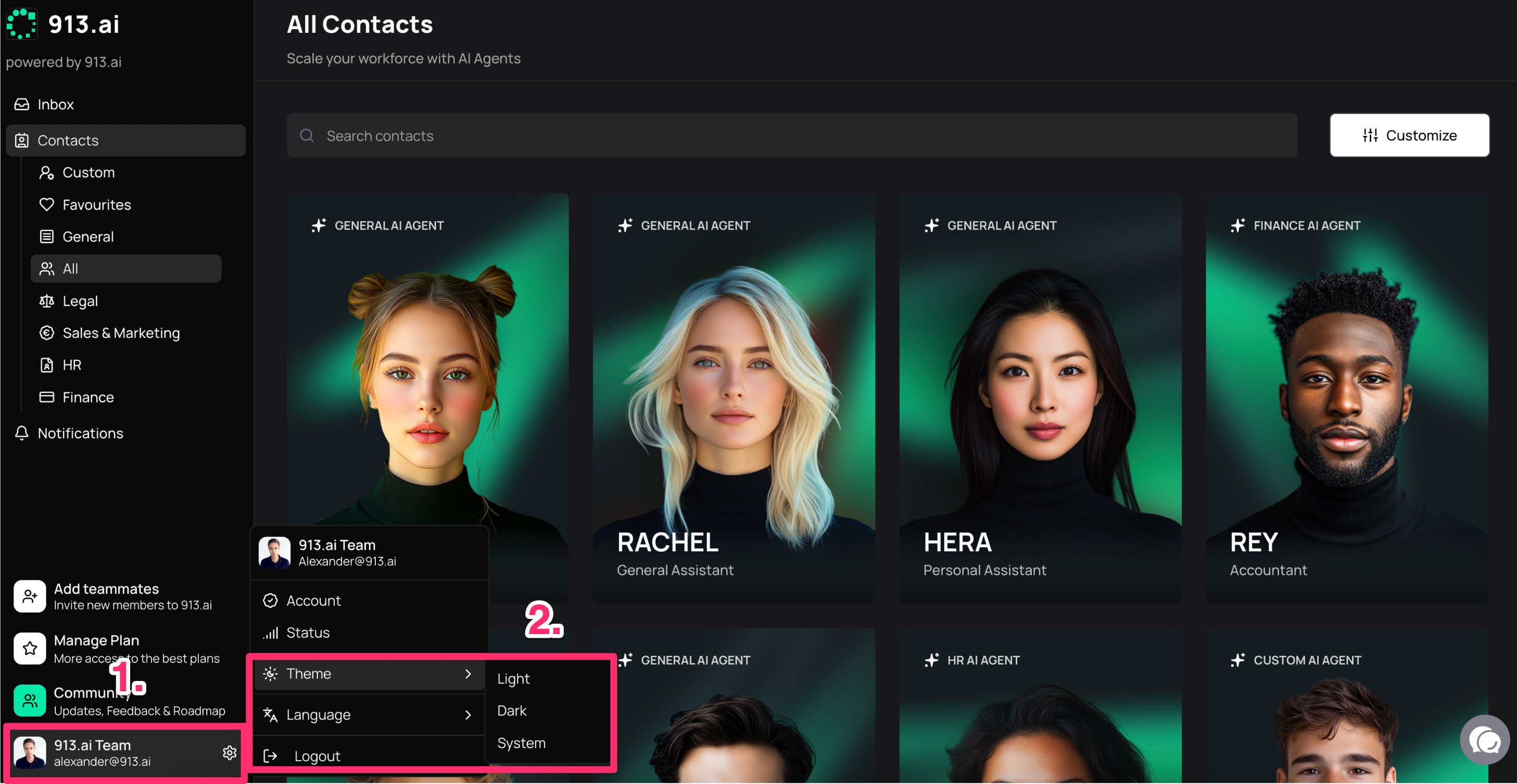
Go to your profile settings at the bottom left
Choose between Light, Dark, or System settings
🎨 Making It Feel Like Home - Add Your Logo & Name
At the very top left of your screen, you'll see a space where you can add your company logo and name. This simple step makes the entire platform feel like it truly belongs to your business!
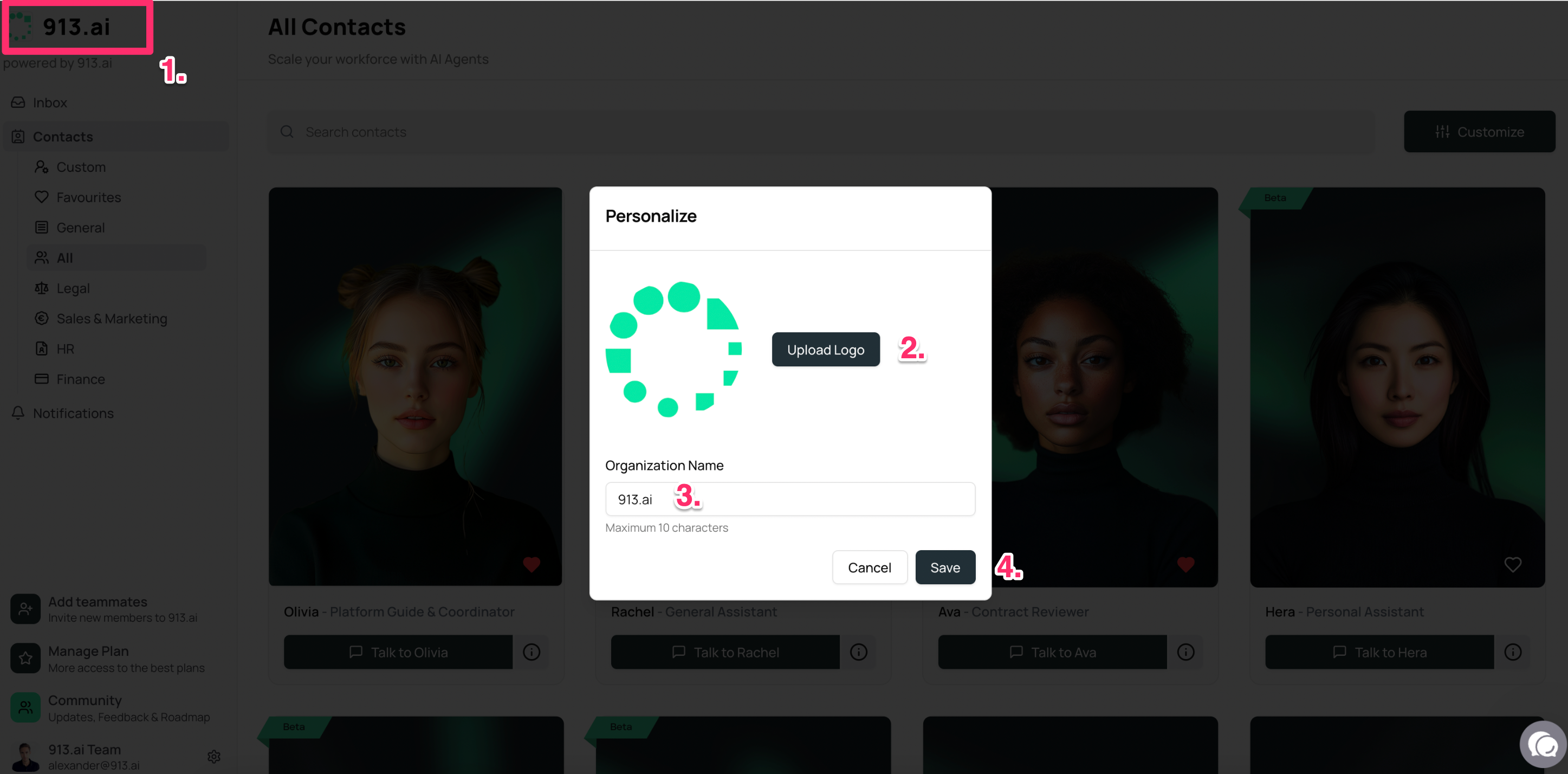
Click on the pencil top left corner, beside logo and company name section
Upload your logo
Enter your company name
Save
📧 Inbox - Your Conversation Hub
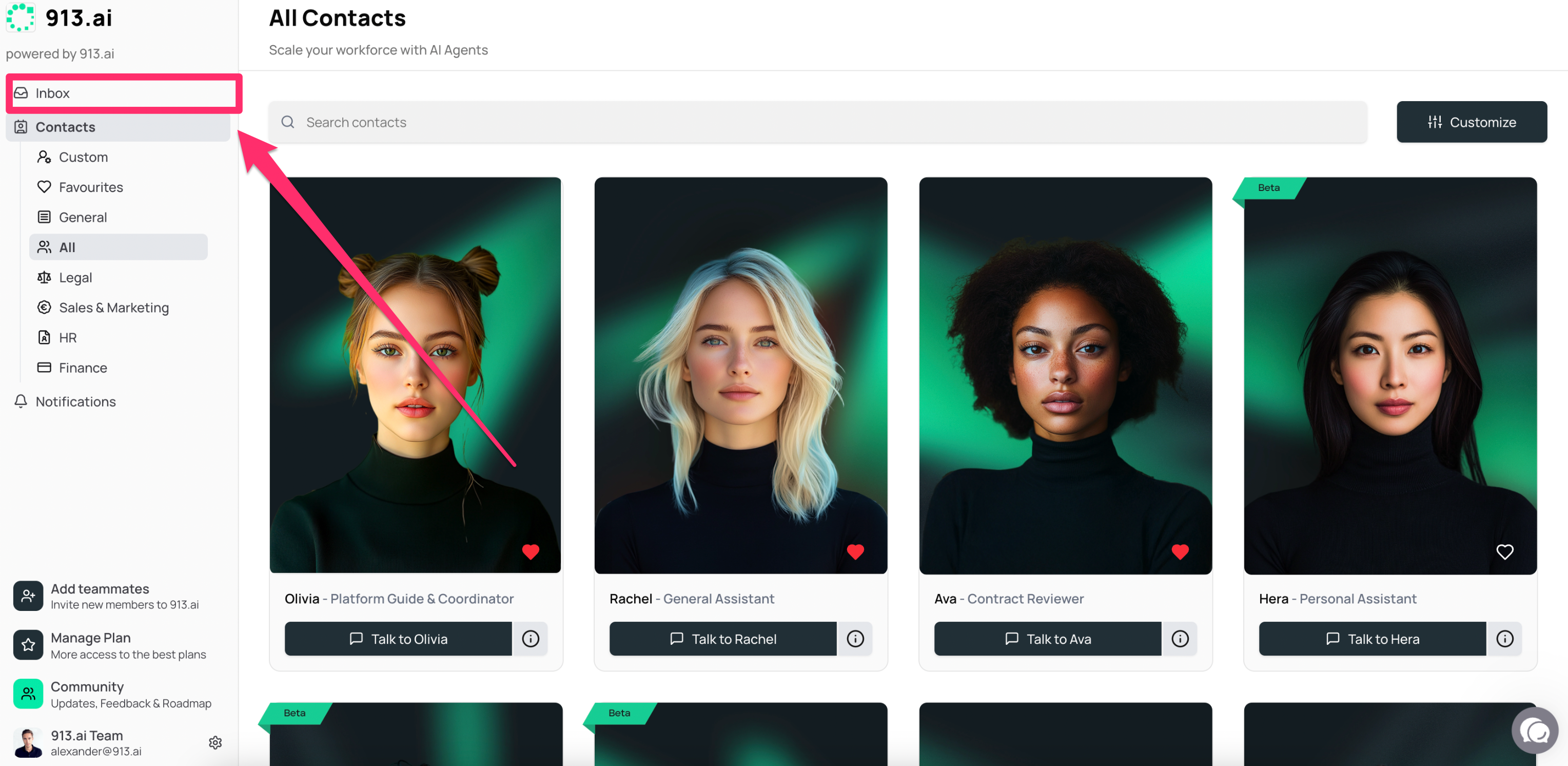
Right below your company logo, you'll find your Inbox. This is where all your conversations with AI workers live. Think of it as your email inbox, but for AI chats! Every time you talk to a worker, you can find that conversation here and you see a small number icon for unread conversations.
👥 Contacts - Meet Your AI Team
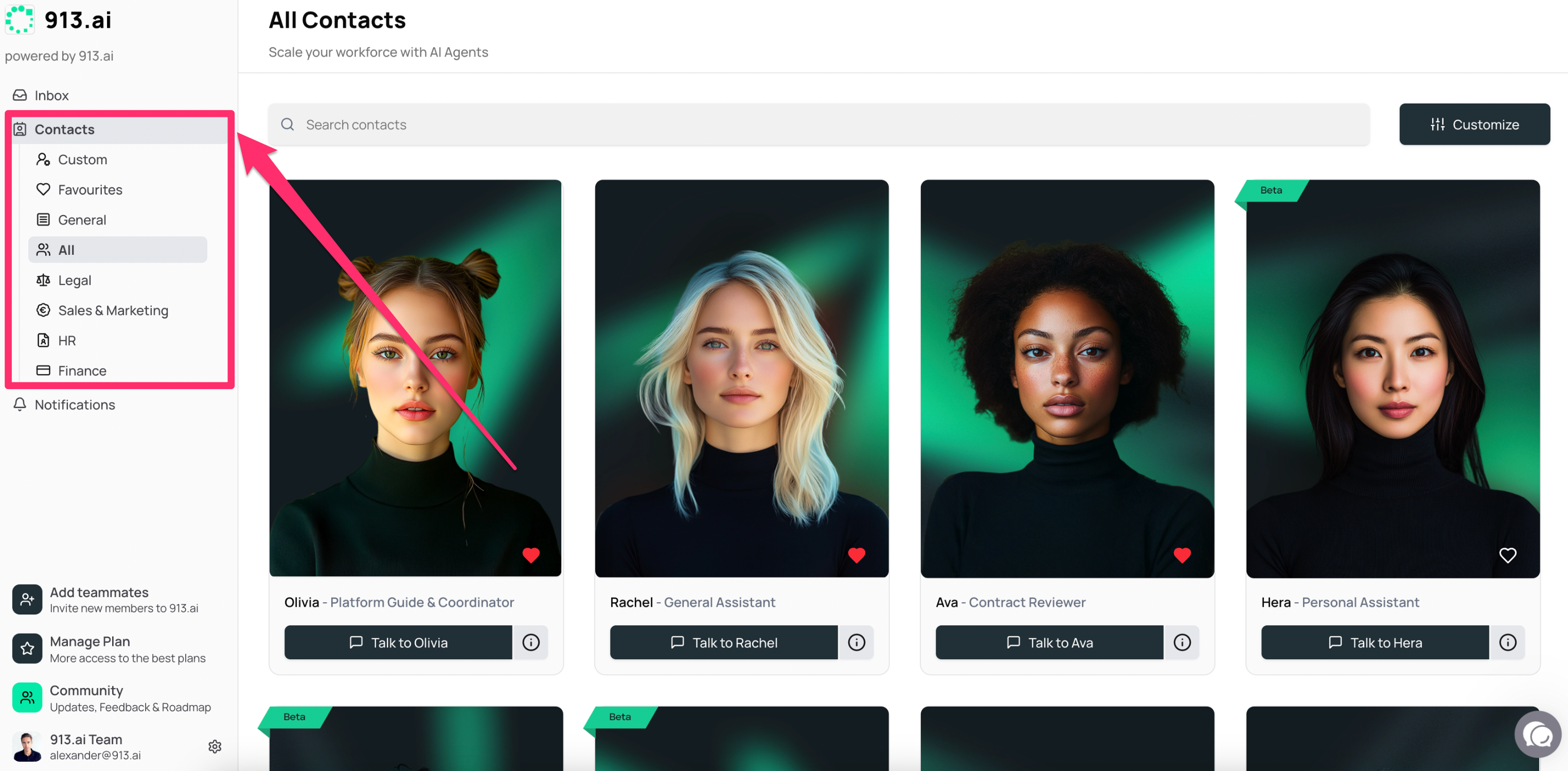
Under the Inbox, you'll see Contacts. This is your directory of all the AI workers available to you. Don't worry about being overwhelmed - we've organized them into different categories and areas of expertise, just like departments in a company.
In the center section, you
Find the ID cards of your AI workers as an overview
Click “Talk to …” to start a conversation with the AI worker
Find out more about the AI worker skills. by clicking the ℹ️
🔔 Notifications - Stay in the Loop
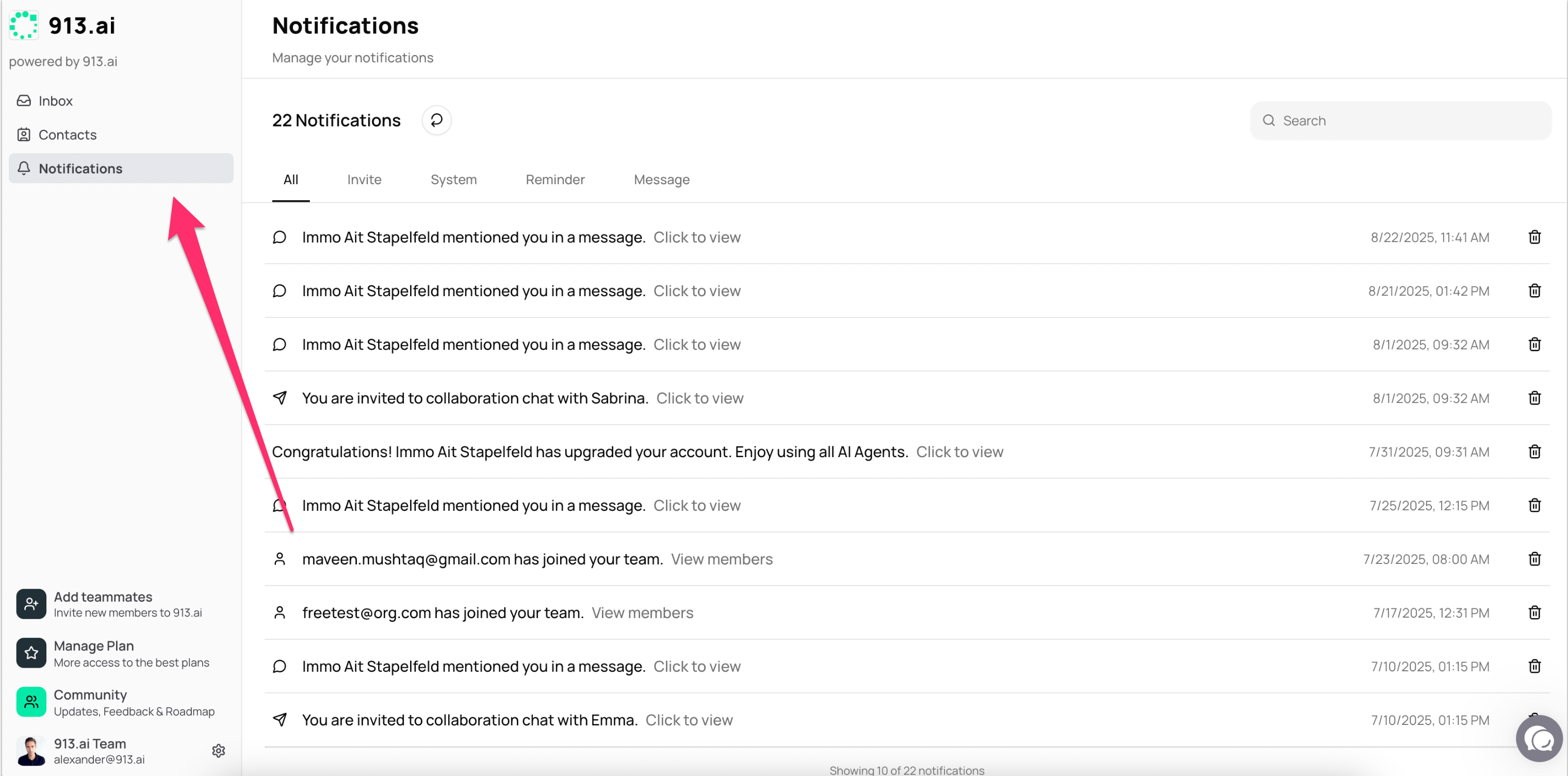
The Notifications section keeps you updated on important information. You'll see alerts about.
👫 Team Management - Bottom Section
At the bottom of your sidebar, you'll find several important options:
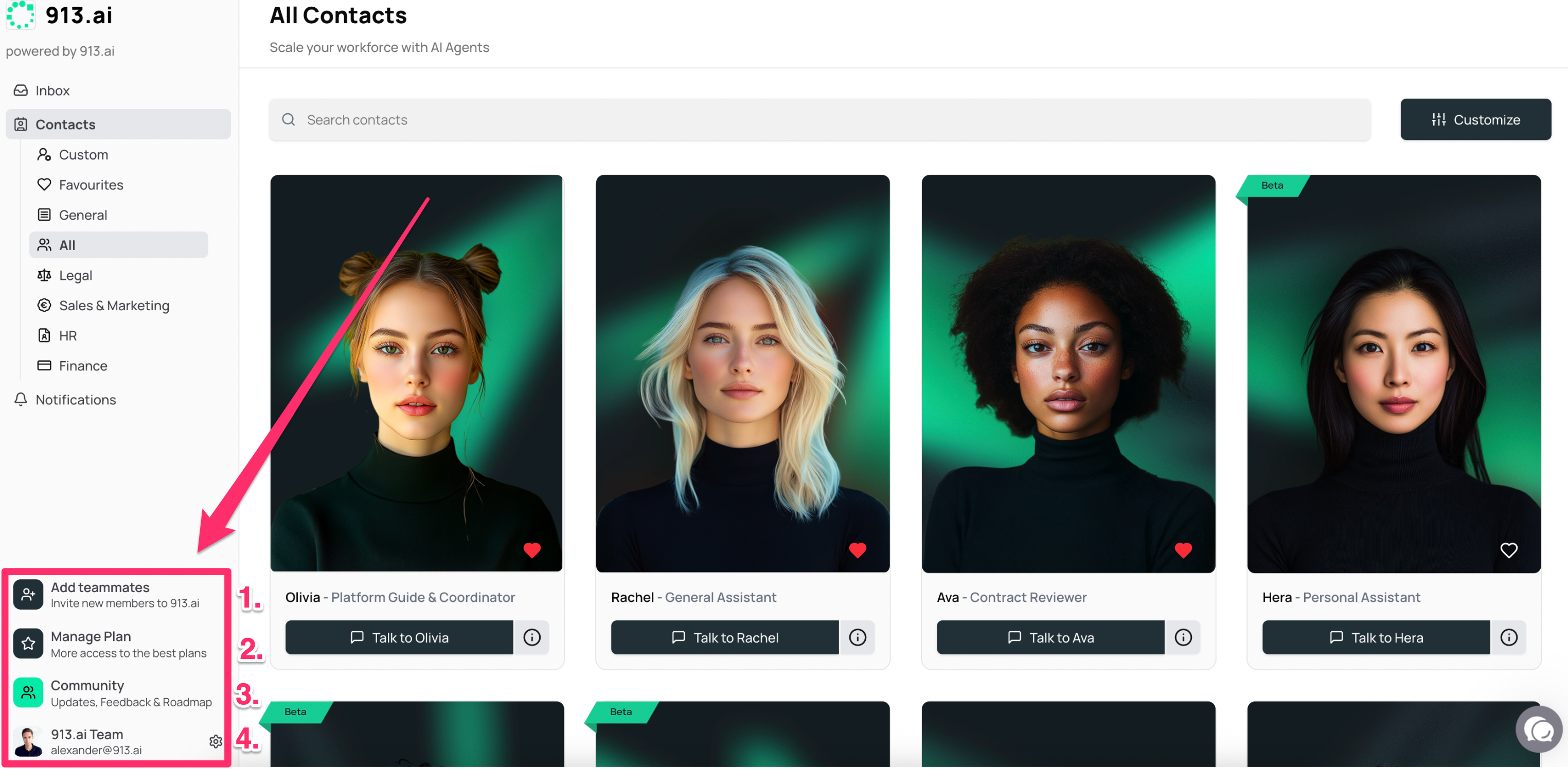
➕ Add Teammates: Easily invite colleagues to join your team workspace. Collaboration made simple!
💳 Licence Management: Keep track of your subscription plan and make changes if needed. No technical knowledge required - it's all user-friendly.
🌐 Community Page: This is your go-to resource hub! Here you'll find:
Helpful how-to articles (like this one!)
Product updates and new features
A place to share feedback and suggestions
Current feature roadmap to see what's coming next
⚙️ Profile & Team Settings: Change your settings, theme, language, and server status page.
💬 Your Bottom Right Corner - Help & Community Hub
Don't forget about the helpful options in the bottom right corner of your screen:
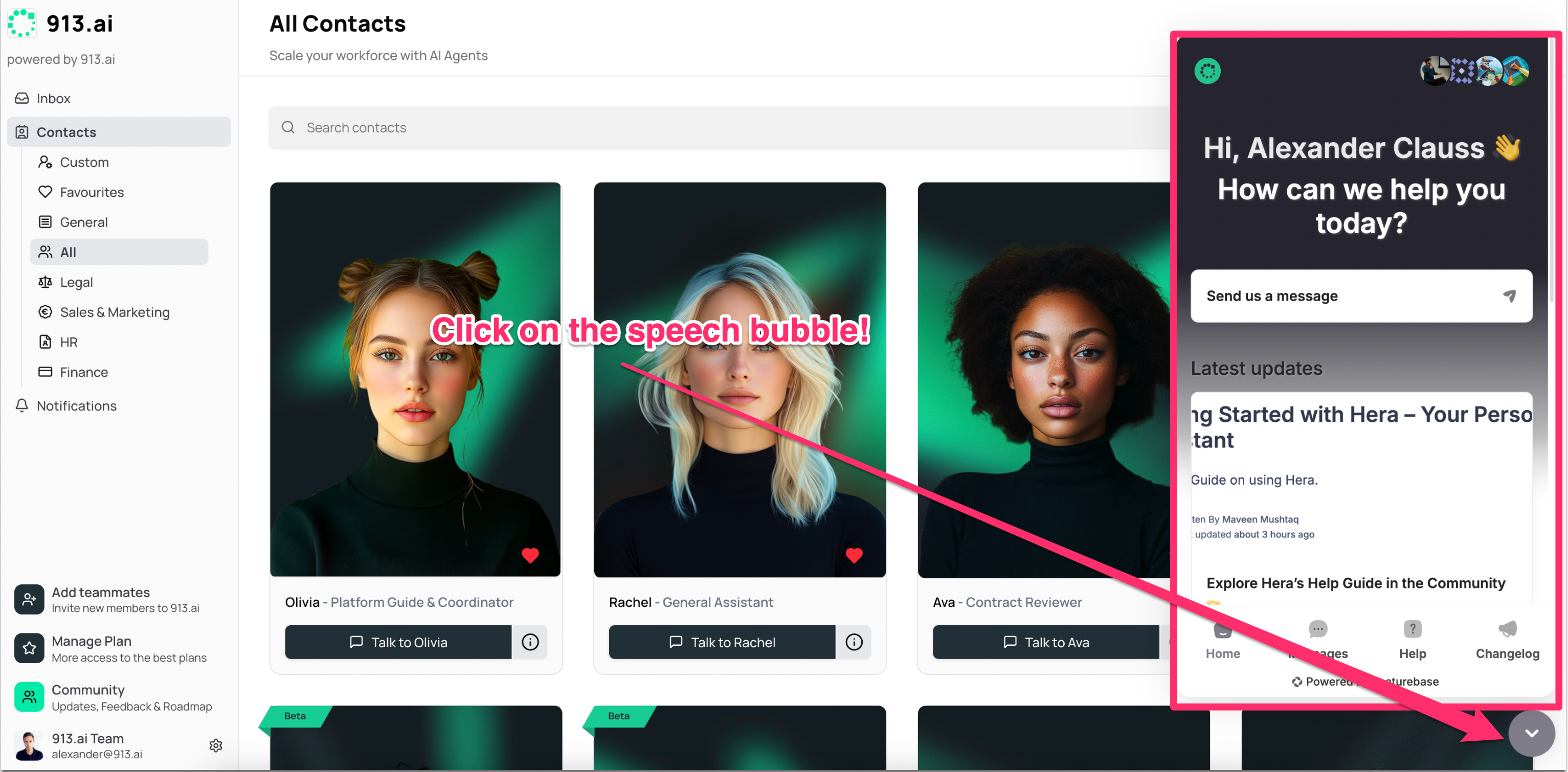
💬 Support Chat: Have a question or need help? Click the support chat button to send us a message directly. Our team is here to help you succeed!
🌐 Community Access: Quick access to all updates and how-to guides.
💡Quick Tips for Getting Started
✅ Start Simple: Begin by exploring the Contacts section to see all you AI workers. If you are in doubt who is the best to help, ask OLIVA your personal account manager.
✅ Bookmark Favorites: Once you find workers you use often, mark them as your favorite for quick access.
✅ Check Notifications: Make it a habit to glance at notifications for important updates.
✅ Explore Community: When you have questions, the Community page is your best friend for finding answers and learning new tricks!
Need Help? Remember, the Community section has more detailed guides, and you can always reach out through the Community Chat for direct support! 🚀