How to Use Your Inbox - Managing Conversations with Your AI Agents 📬
Your Inbox is your communication center where you manage all your sessions with AI workers. Think of it as your personal workspace where every conversation with an AI worker is organized and easily accessible!
Written By Alexander Clauss
Last updated 9 months ago
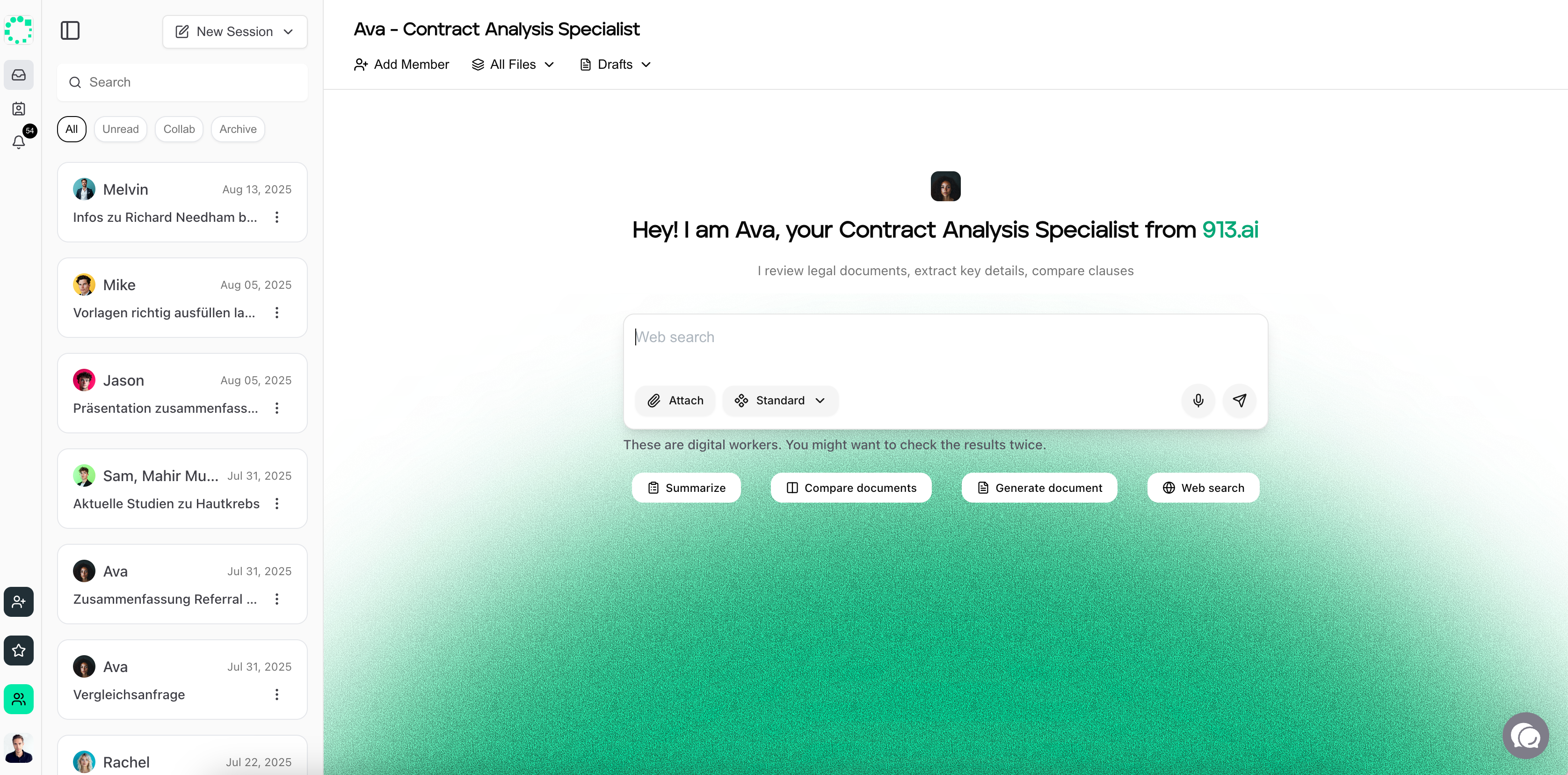
Starting Fresh - New Sessions 🆕
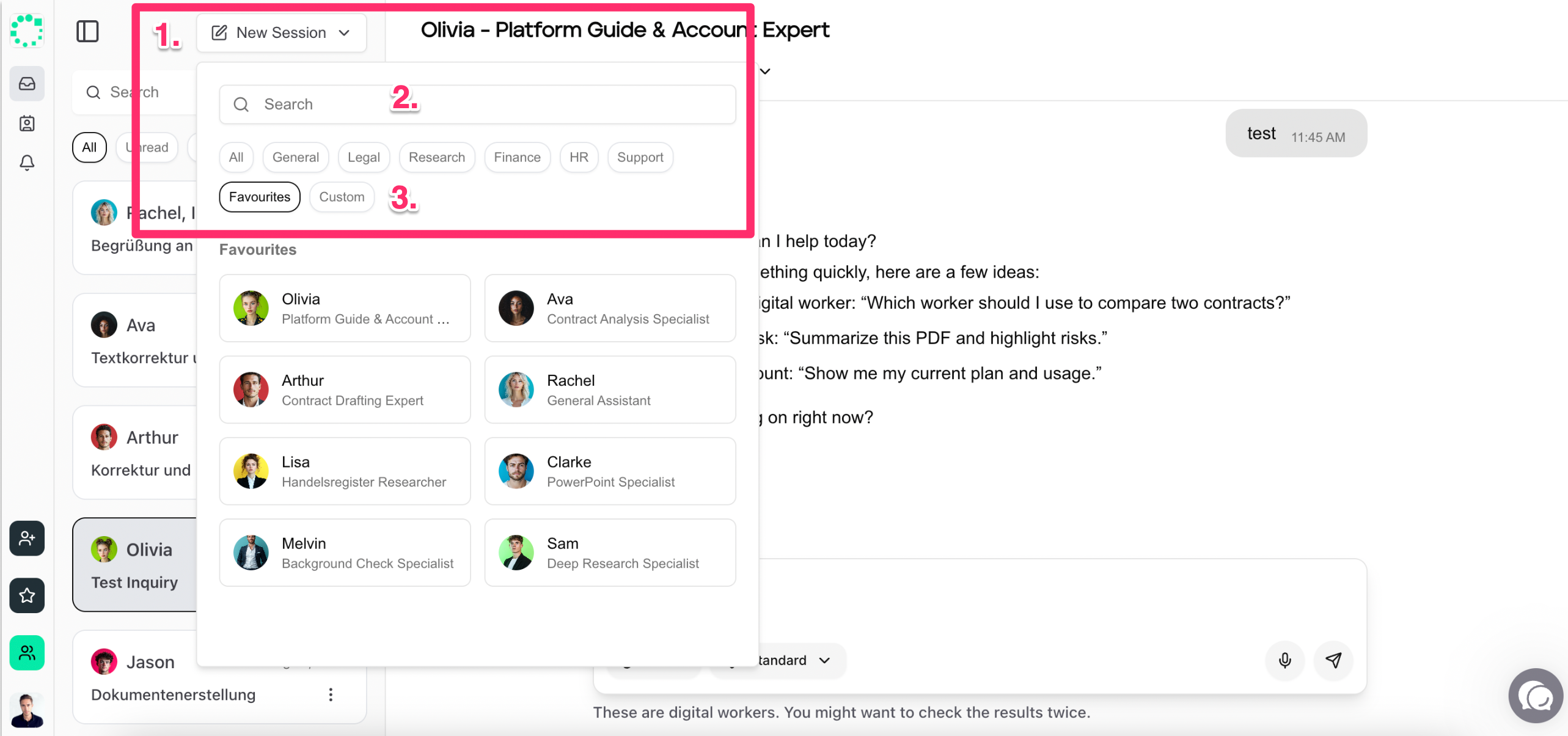
📝 Create a New Session: At the top left of your Inbox, you'll see the "New Session" button.
Search for the AI worker you want to work with
Browse through different specialists by expertise
And start a fresh conversation for your new project.
💡 Pro Tip: You can and should have multiple conversations with the same AI worker. Each new project deserves its own session! This keeps your work organized and makes it easier to find specific conversations later.
Finding Your Way Around 🔍
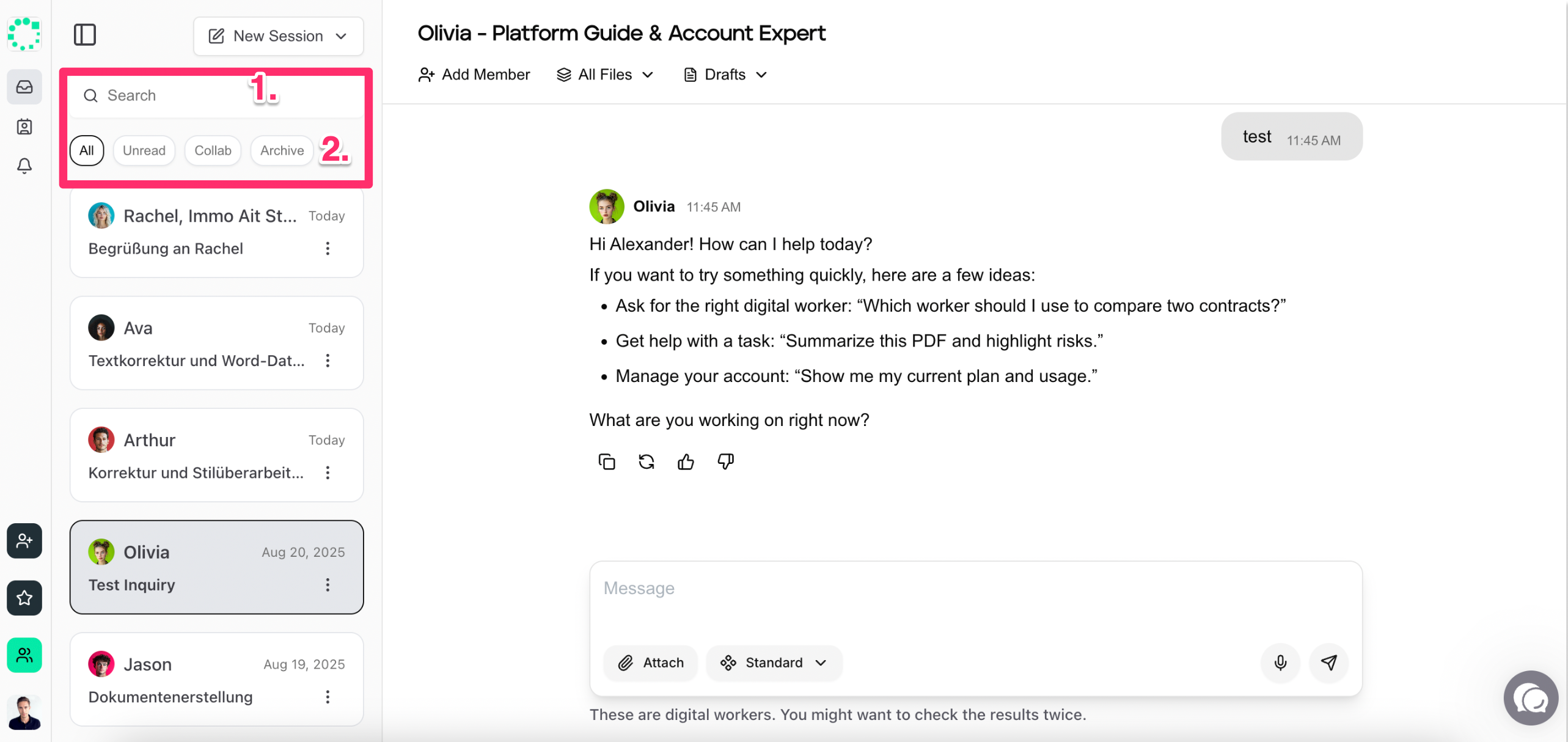
🔎 Search Function: Use the search bar on the left to quickly find existing sessions by keywords or topics.
🗂️ Filter Your Sessions: Keep your workspace tidy with these handy filters:
All: See everything at once
Unread: Focus on sessions with new responses
Collab: Find sessions where you're working with teammates
Archive: Access your completed or stored sessions
🗂️ Edit Your Existing Sessions
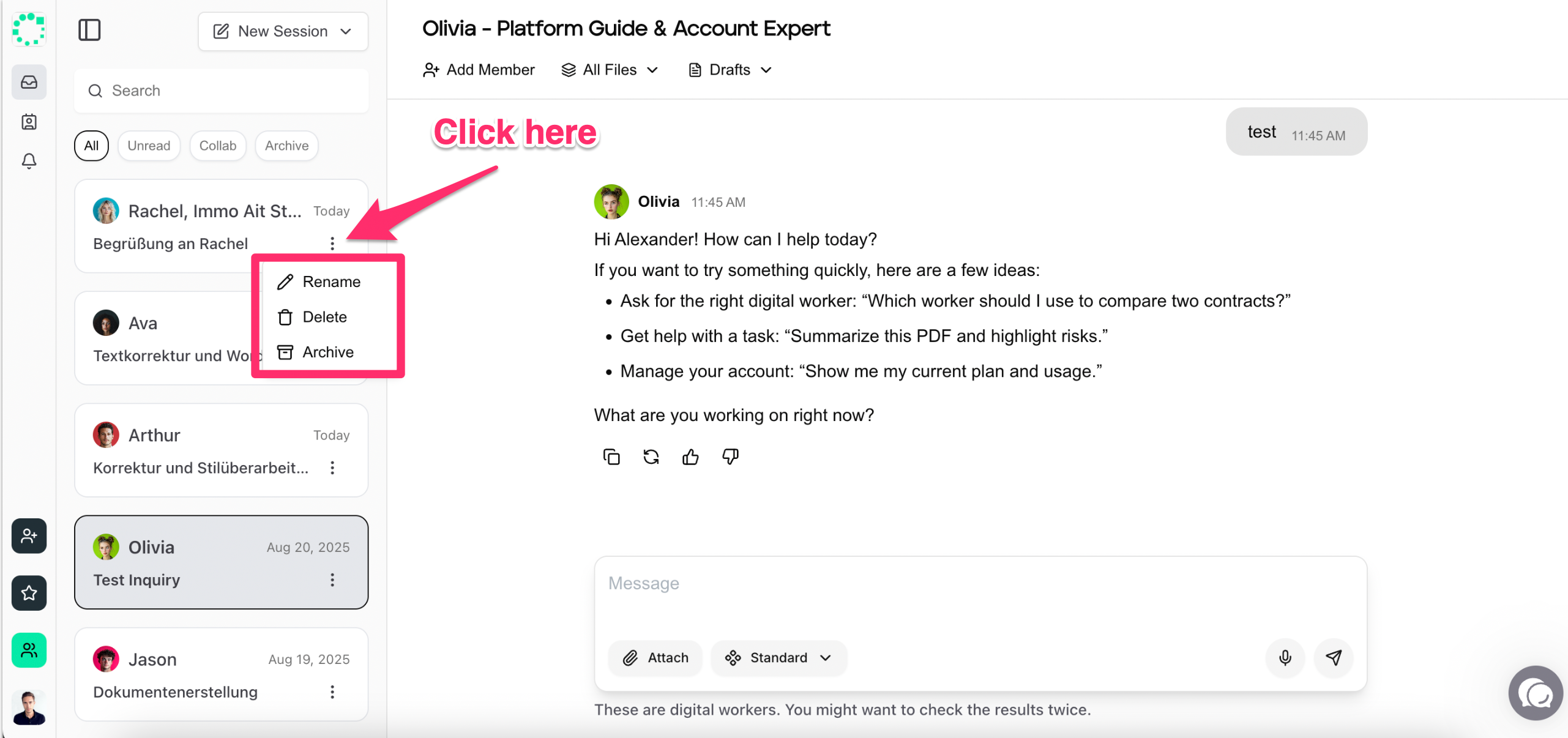
Here you can rename, delete, or archive your existing sessions to stay organized.
The Magic Happens in the Center ✨
🎯 Your Main Workspace: The center panel is where you'll spend most of your time!
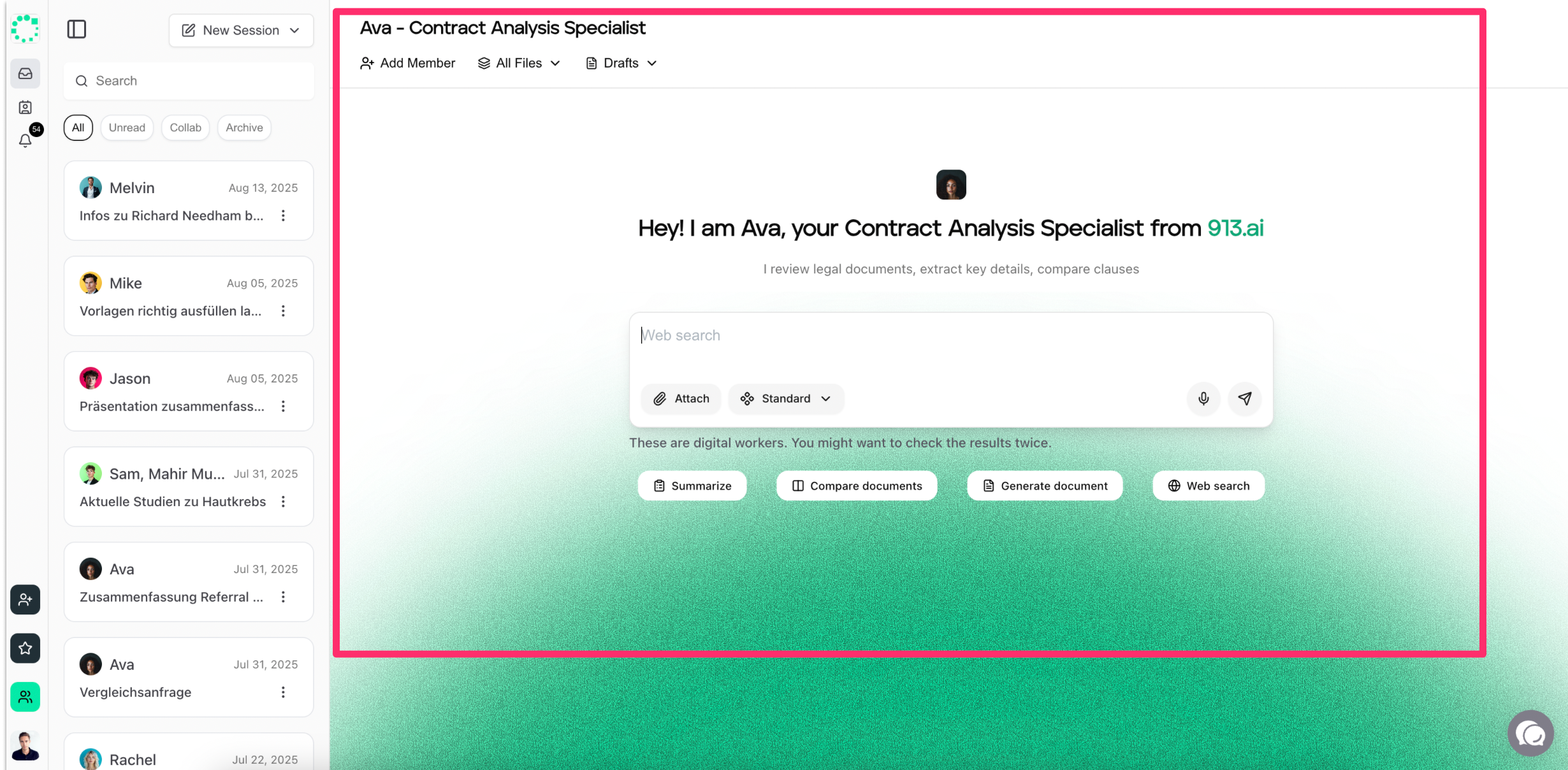
The main topic here is to 💬 Delegate your tasks and give instructions: Tell your AI worker exactly what you need them to do.
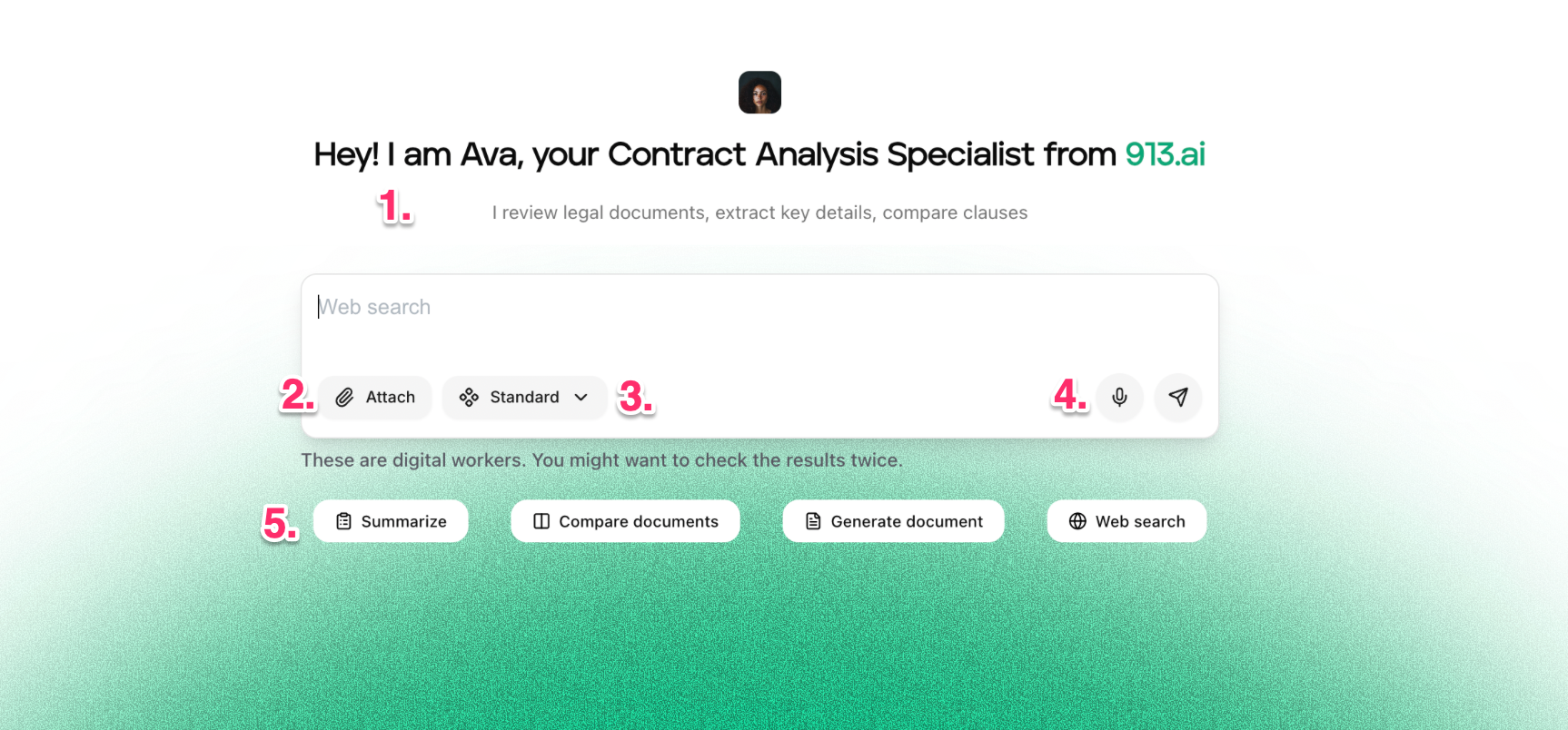
You can:
🤖 Meet your AI worker: Each worker introduces themselves with a brief summary of their specialization
📎 Attach files: Upload documents, images, or data to share with your AI worker
⚙️ Choose working mode: Select Standard for simple tasks or Advanced for more complex projects
🎤 Voice input: Not a fan of typing? Use the dictate function to speak your tasks directly
🚀 Quick Task Actions: Find suggested starter tasks at the bottom to help you get the conversation going
⚠️ Remember: You're the Boss! These are digital workers, and you make the final decisions. Always review and double-check their work before using it in your business.
Manage your session 🗃️
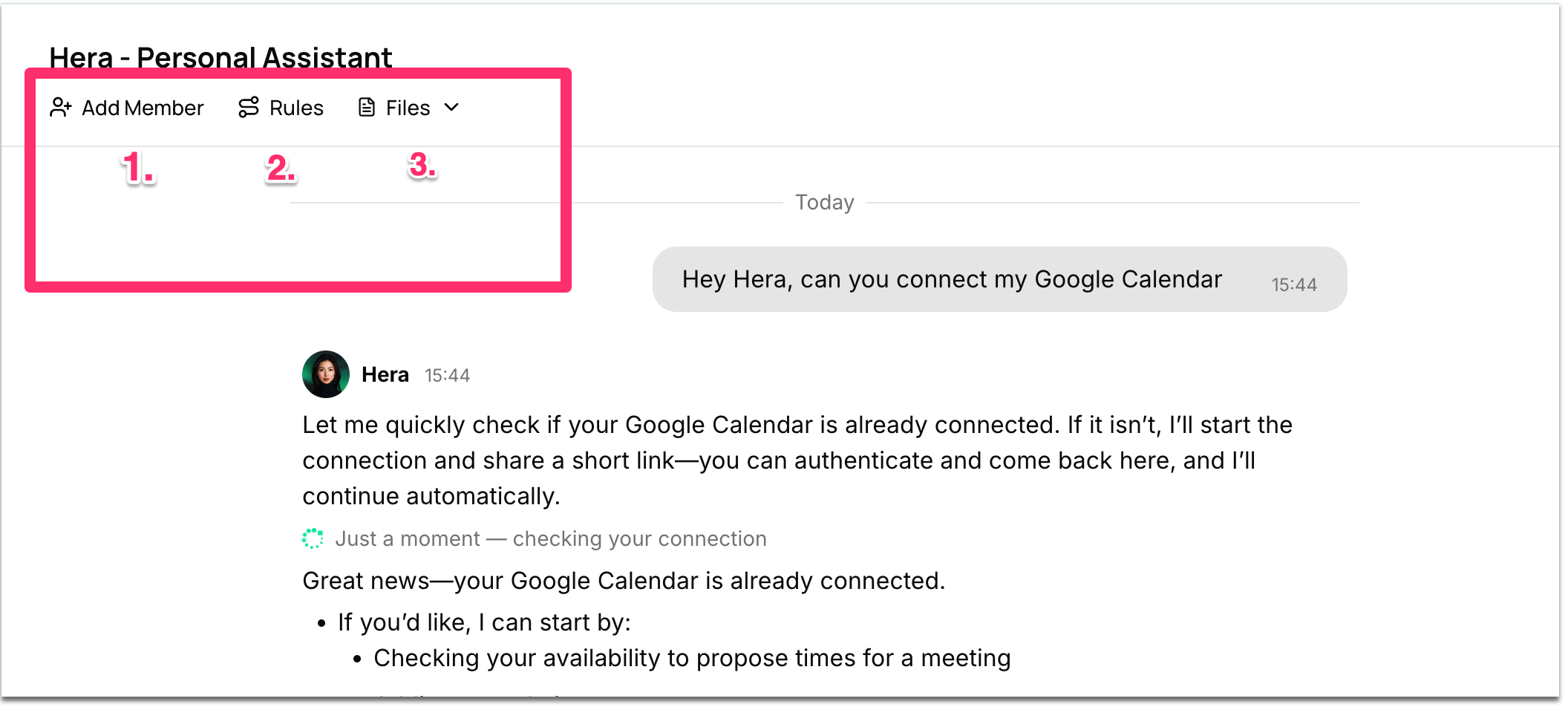
🤝 Add Teammates: At the top of your session, click "Add Member" to invite colleagues to join the conversation and work together on projects with AI workers.
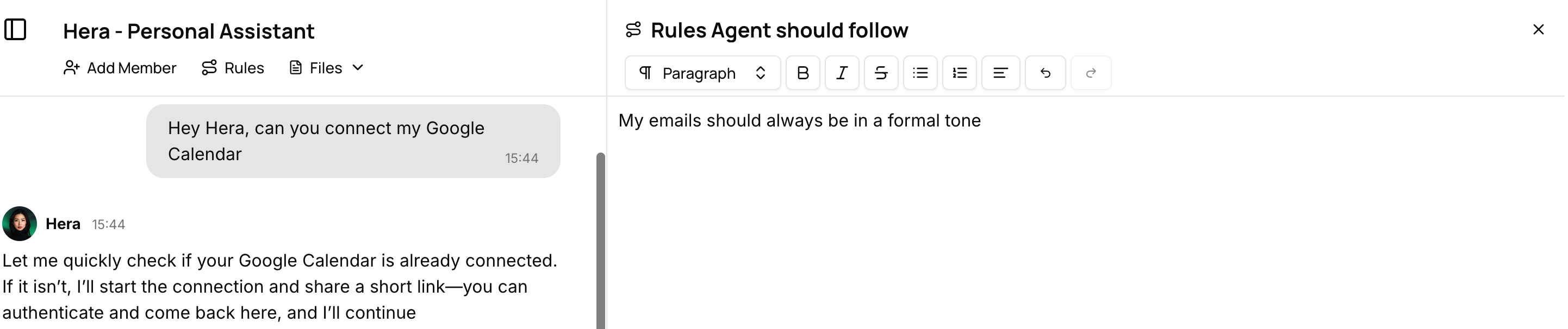
Rules: Set guidelines only once which your agents remember without repeating the same point to the agent again and again.
For example, you can set a rule that “ My emails should always be in a formal tone”. Set it only once in the rules section and the agents remember it always in your chat.
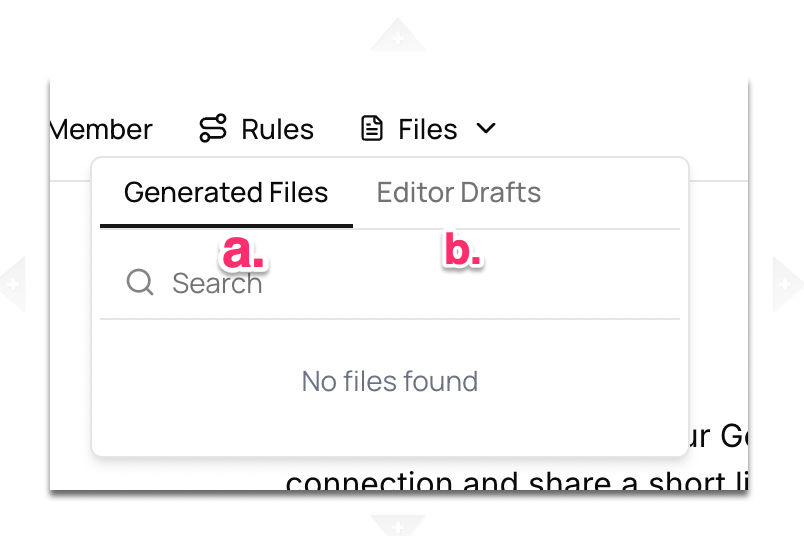
Files: This has two types of files when clicked upon:
a. Generated Files → Files created by the agent during your chat
b. Editor Drafts → Drafts you’ve started or saved in the file editor
Chat in Multiple Sessions
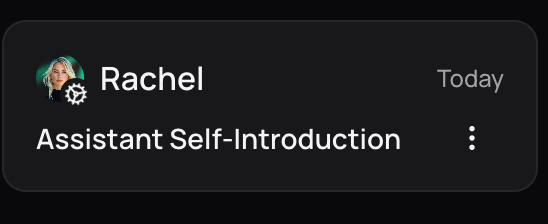
With 913.ai, you can open multiple chat sessions with different AI agents at the same time. While you continue chatting in one session, your other agents keep working in the background on their tasks.
You’ll notice a loading icon on the agent’s avatar in your Inbox, indicating that the agent is still processing your request. Once they’re done, the results will automatically appear in your chat — no need to wait around.
Never Lose Your Task
Worried about losing progress if you close the platform mid-task? Don’t be. Even if you close 913.ai while an agent is working on your request, the task continues running in the background.
When you come back, your AI agent will have the results ready and waiting for you — right where you left off.
Quick Tips for Success 💡
✅ Start with Quick Actions: Use the suggested tasks (buttons at the bottom) to understand what each worker does best
✅ Name Your Sessions: Give your sessions descriptive names so you can find them easily later
✅ Use Collaboration: Don't work alone - invite teammates when you need different perspectives
✅ Review Everything: Remember, you're the decision-maker. Always check the AI worker's output before finalizing
✅ Keep It Organized: One project = one session. Your future self will thank you!
Need Help? Check the Community section for more detailed guides, or use the support chat in the bottom right corner for direct assistance! 🚀