Folders
Folders on 913.ai help you organize files and easily use your files as context across chats. This guide walks you through everything you need to know to get started.
Written By Mahir Mushtaq
Last updated 5 months ago
What Are Folders?
Folders allow you to group related files together in one place. Once files are added to a folder, they become available to your agents as context, making it easier to reference, search, and use information across your workspace.
Creating a New Folder
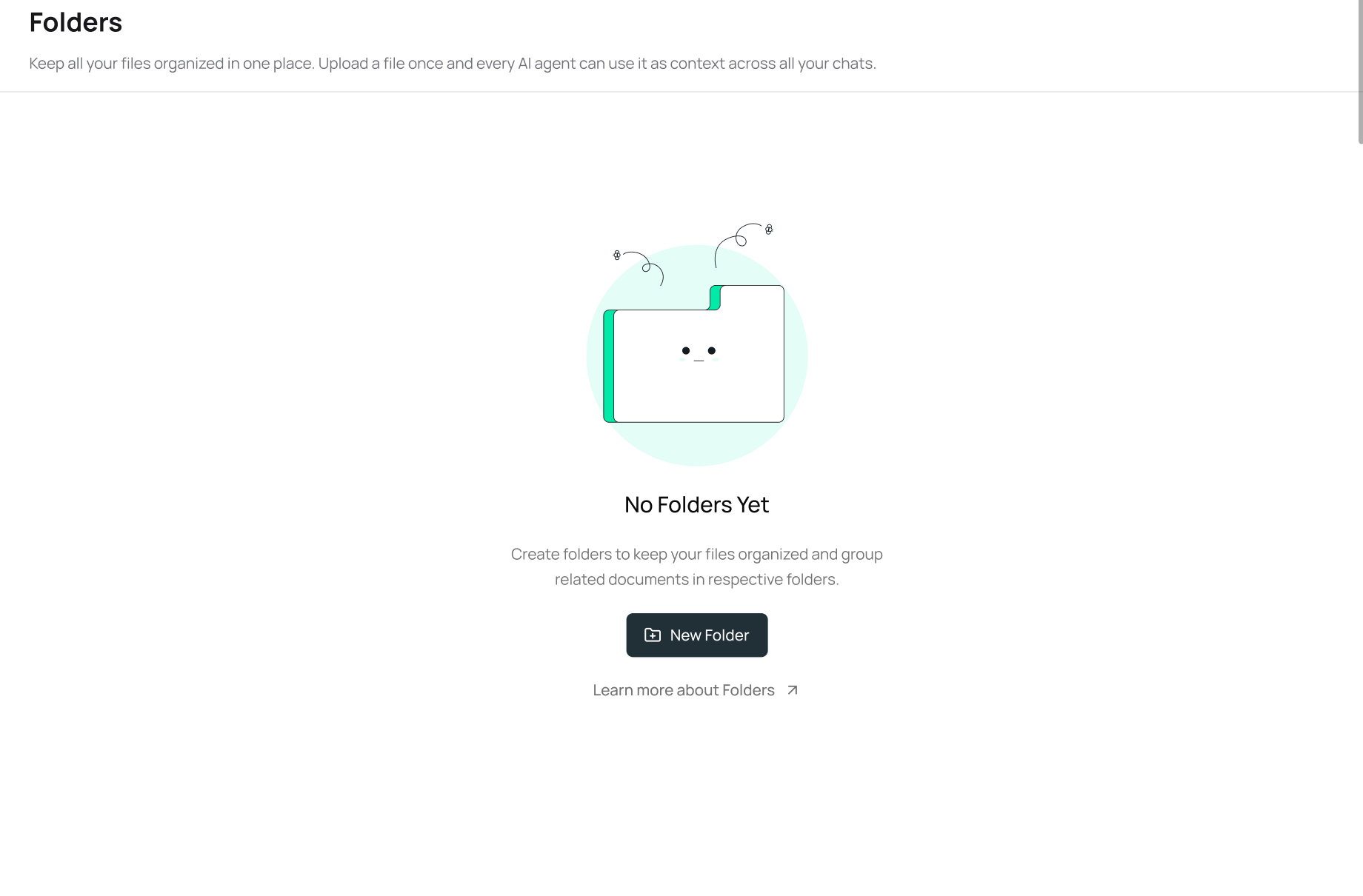
Go to the Folders section from the menu.
Click New Folder.
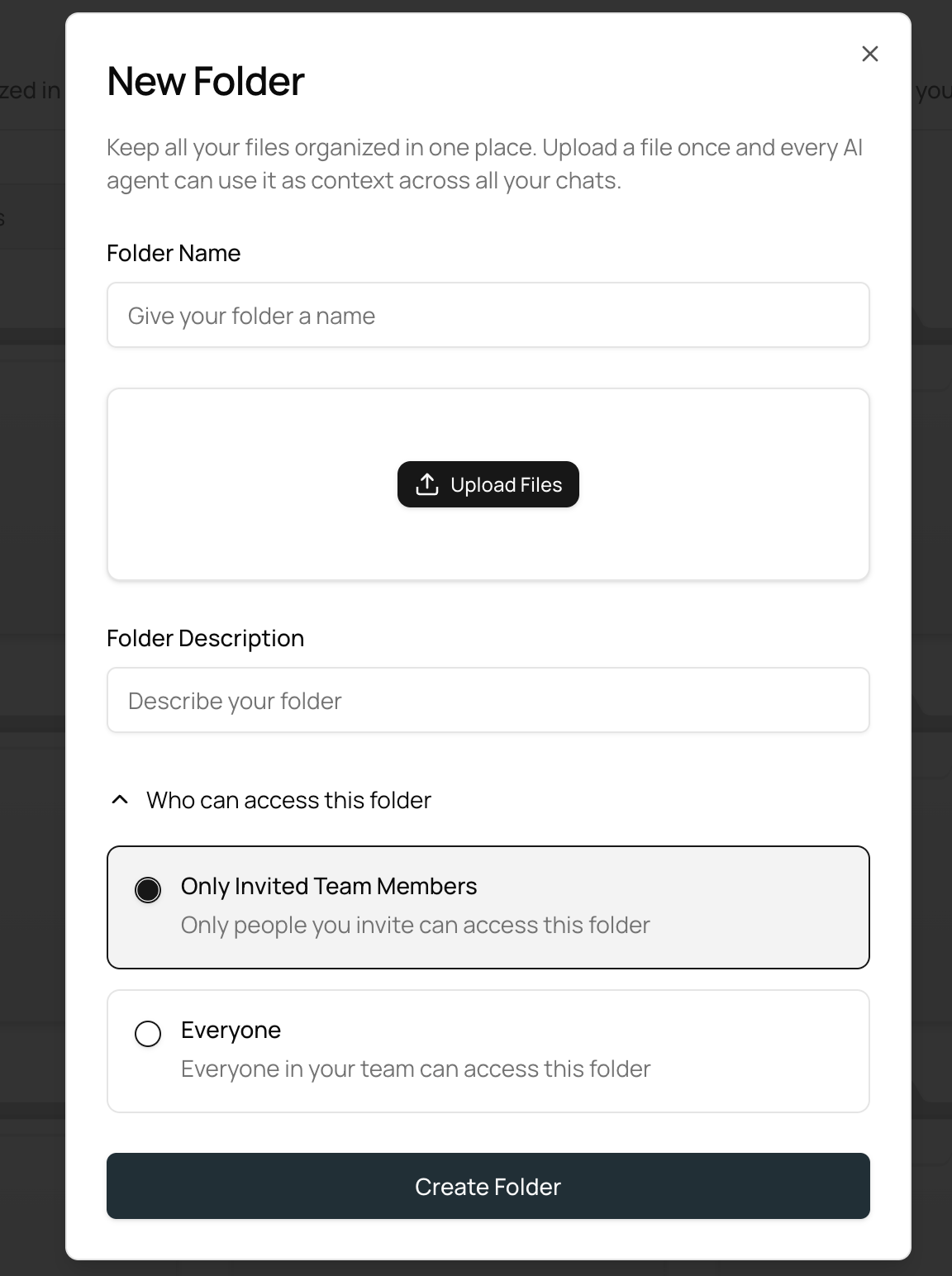
A pop-up will appear where you can:
Name the folder
Upload files
Add a description (optional but helpful)
Set access permissions
Invited members only
All team members
Click Create Folder to finish.
All these steps happen in one simple pop-up.
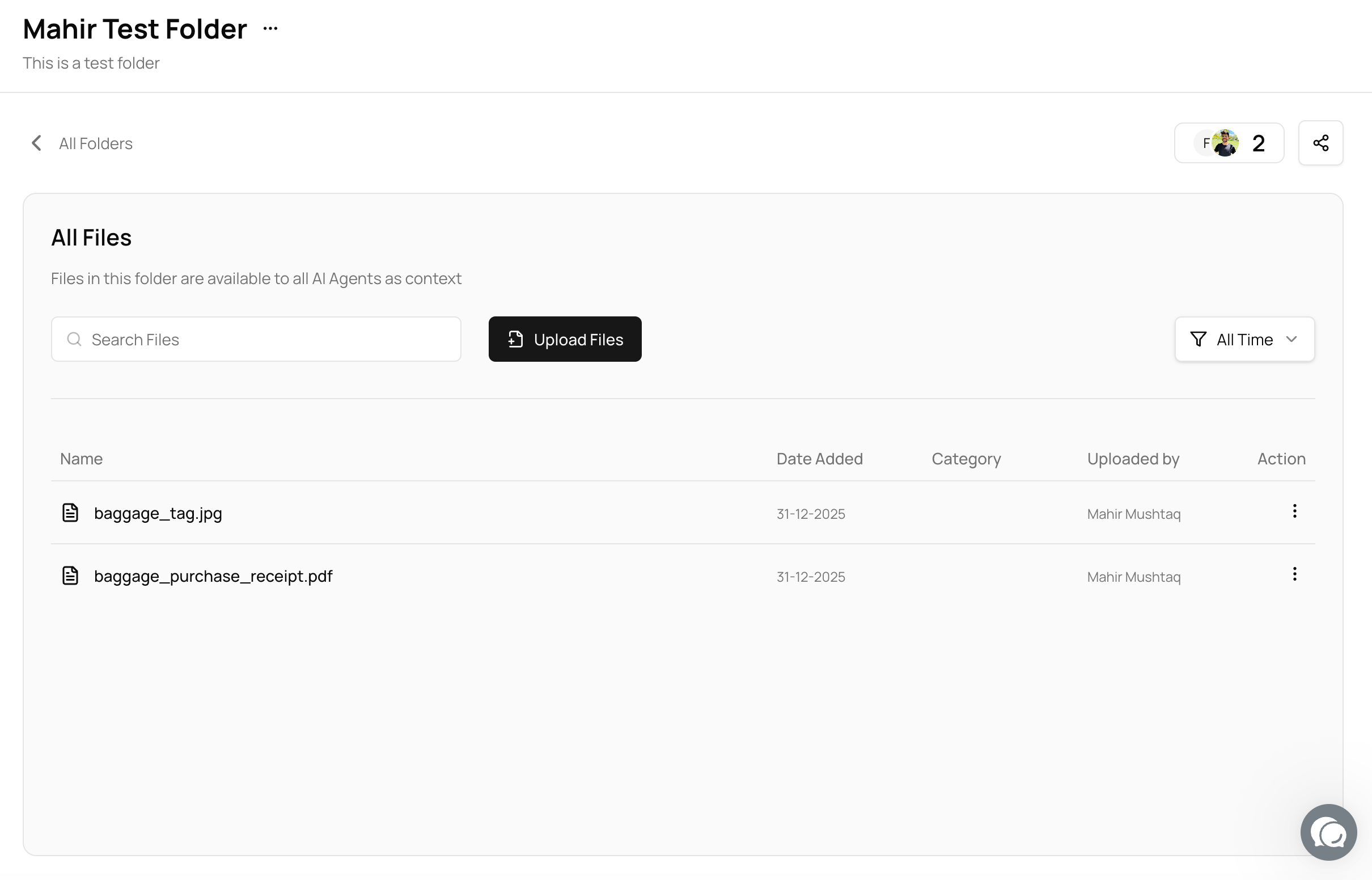
Viewing and Managing Files Inside a Folder
Once a folder is created:
Open the folder to see all uploaded files.
You can:
Add more files
Search for files
Filter files to find what you need faster
Share folder with your teammates
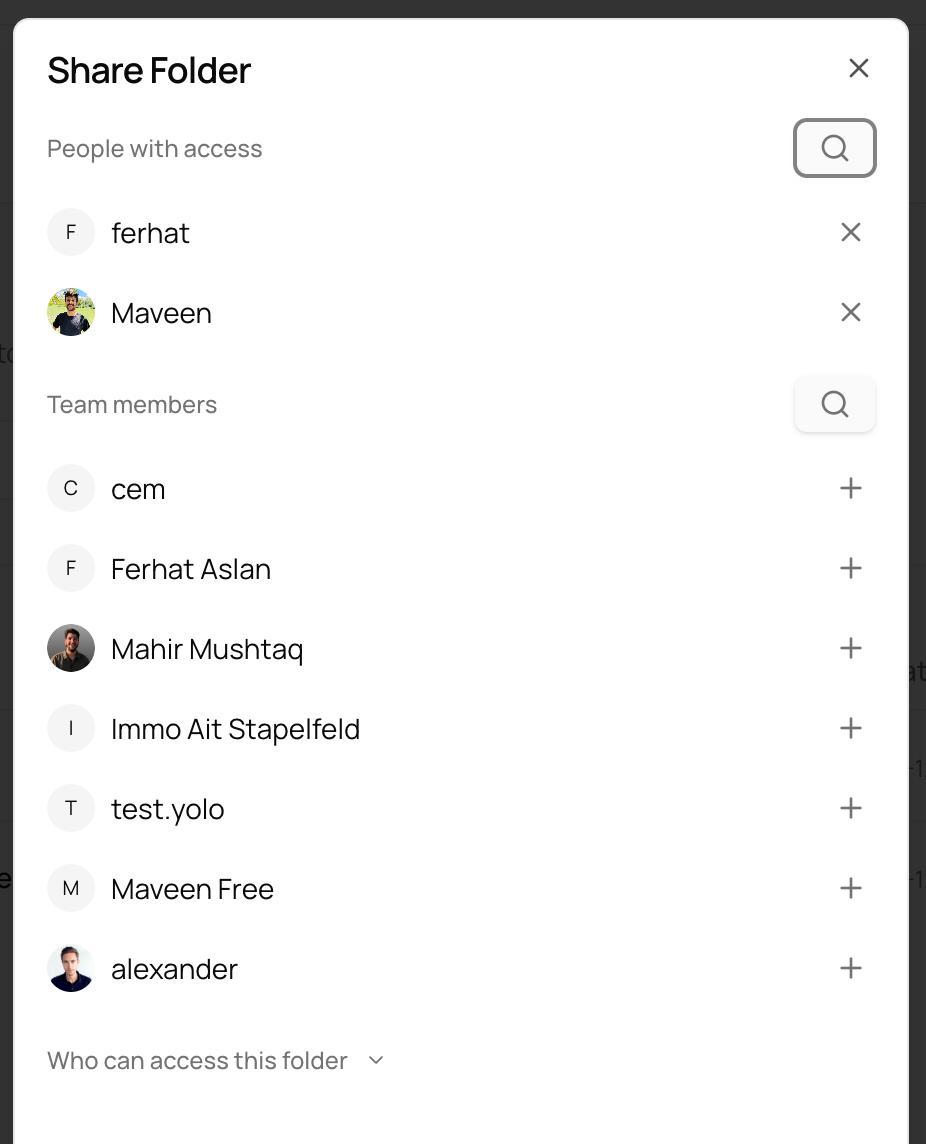
Sharing Folders and Managing Access
You can easily share a folder with specific team members and control who has access to it.
Open the folder you want to share.
Click the Share icon at the top of the folder.
A pop-up will appear where you can:
Add team members who should have access
Remove team members if access is no longer needed
Adjust the folder accessibility:
Invited members only
All team members
All sharing and access settings are managed in one place, making it easy to update permissions at any time.
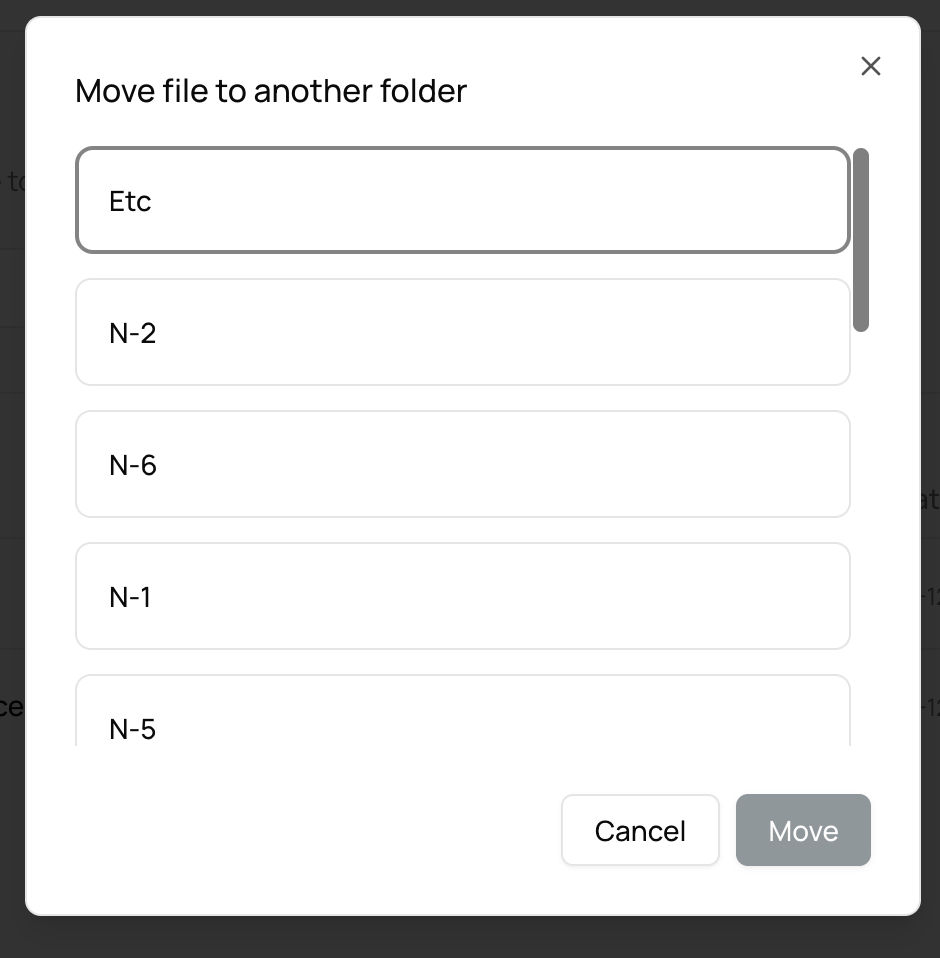
Moving Files Between Folders
You can easily move files from one folder to another:
Find the file you want to move.
Click the three-dot menu next to the file name.
Select Move File.

Choose the destination folder.
Folder Options and Settings
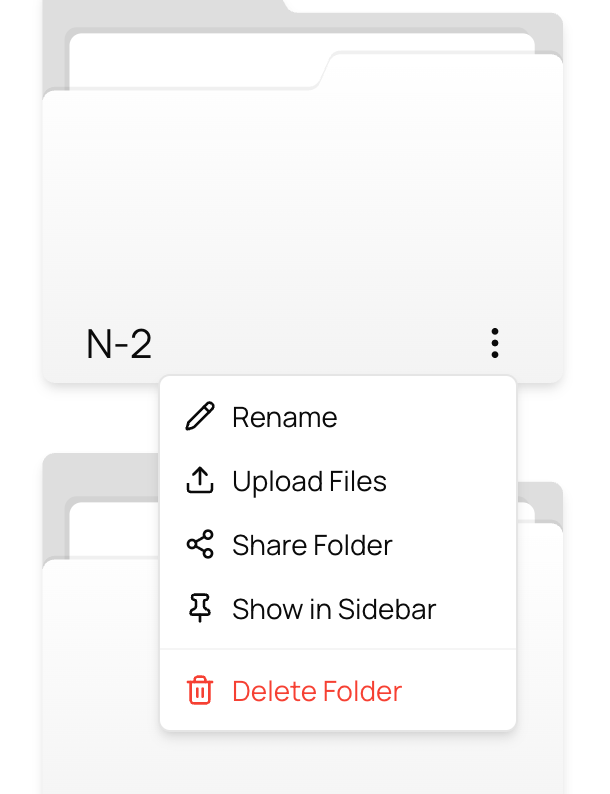
You can access folder options from:
The sidebar
The top bar
The folder itself
Available options include:
Rename the folder
Choose whether the folder appears in the sidebar
Share the folder externally
Upload files directly to the folder
Using Folder Files with Agents and Chats
Once files are uploaded to a folder, they are available to all agents as context.
You can use them in two ways:
Option 1: Let Agents Access the Folder
Simply reference the folder, and agents can use all files inside it.
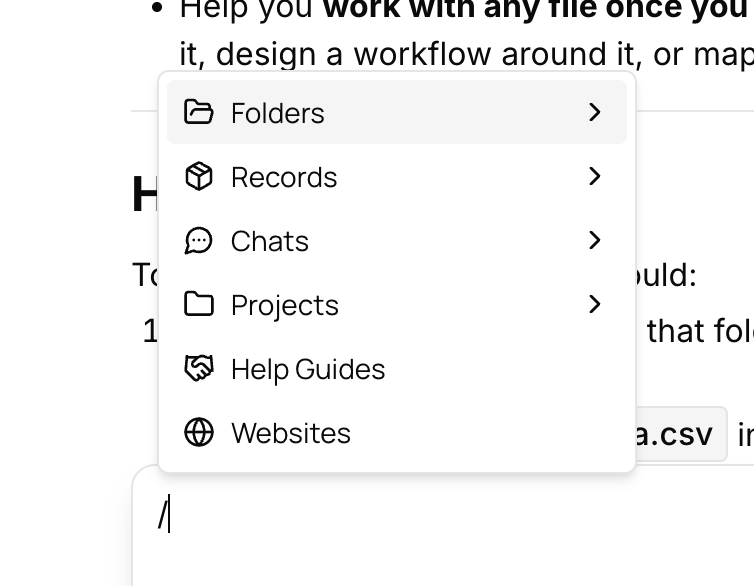
Option 2: Add Folder or Files in Chat
Open any chat.
Type / (slash).
A menu will appear where you can add context such as:
Entire folders or specific files
Records
Projects chats and project files
General Chats
Help guides (for summarization or reference)
Websites (by entering a URL)
This makes it easy to give agents exactly the information they need.
Summary
Folders on 913.ai help you:
Organize files in one place
Control who can access content
Quickly find and move files
Use folders and files as context across agents and chats
They are designed to be simple, flexible, and powerful, even for non-technical users.