January 29th, 2026
New
New Feature: Saved Prompts
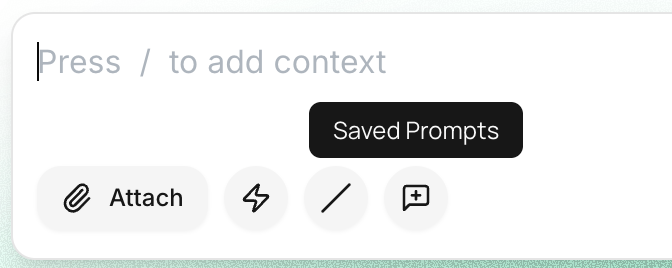
Saved Prompts let you store frequently used messages and reuse them anytime with just one click. Save a prompt once and use it again anytime
How to save a prompt
Click the Saved Prompts icon in the message box
Select New Prompt
Add a title and your prompt text
Choose whether to share it with your team
Click Save
Access prompts via the Saved Prompts icon or the slash command
💡 If you already typed a message in the message box, you can save it directly, no need to copy-paste.
Why it’s useful
Saves time
Avoids repeating the same messages
Keeps your best prompts always ready
Write a comment...